Technology
Backup your files regularly!
- USB flash/jump drives (32GB for ~$20)
- external USB hard drives, 1000GB for <$100
- use synchronization software to replace only the files that
were changed on your computer hard drive or your external USB
drive
- another option is to use on-line backup services, your files
are then stored on an off-site server, e.g.:
- backup daily!
Keep file sizes manageable
- large files
- are difficult to e-mail (size limits!)
- take up lots of space on your computer and backup
- are slow
- can often be avoided
- make sure that images are not being stored at a resolution
higher than the screen (or print) resolution
- typical print resolution is 200dpi (dots per inch),
screen/projector resolution 96 dpi
- size of projector image at most 1920 x 1200 = 2.3
mega pixels
- different sizes of graphic file formats vary in their
filesize, GIF or PNG
format is appropriate for images with sharp transitions and
few colors, JPEG is
better for images with lots of colors and smooth transitions,
such as photographs; WMF files can be edited in ppt
- use an image editing software to adjust resolution of the
images and thus file size
Provide high quality images
- the graphics in your thesis proposal/thesis need to be of high
quality
- images taken from the web often do not have high enough
resolution, you perhaps need to redraw the image
- many journals now provide high resolution images on their
website, e.g. Mailloux
et al., 2013
- if you copy graphs from Adobe Acrobat, the resolution of your
image depends on how large it appears on the screen
- you may scan images from printed materials, keep in mind what
you want to use the image for
- in case you have trouble lifting images from electronic
sources, you can always take a screen dump and paste it into an
image processor, such as Paint
or Photoshop
- in the PC version of powerpoint, you can compress images to a
certain resolution (click
image and then go to Picture tools/Compress pictures)
- use the drawing toolbar to make cartoons yourself
PC/Macintosh compatibility issues
- files created by the same applications on a Macintosh and PC
are not always compatible, although they should be
- the problem is often that images are not transferred correctly
or fonts are not recognized
- tip: use basic fonts (e.g. Times Roman, Arial)
- from a former version of the Microsoft website: "When you
add graphics to slides, be sure to use pictures saved in a
graphics file format that is common to both platforms, such as
Portable Network Graphics (PNG), Joint Photographic Experts
Group (JPEG), or Graphic Interchange Format (GIF). If you are
opening the presentation on a computer that has PowerPoint,
you'll get the best results by using pictures saved in PNG
format. Otherwise, use a third-party graphics program to
convert your pictures into JPEG or GIF files."
- projection equipment at BC is PC based, if you create a file
on a Mac, make sure it works fine on a Windows PC before you
give the presentation
- another, safe possibility is to store the presentation as
Adobe PDF file, that format seems to be the most compatible
between different operating systems.
Remote control & File transfer issues
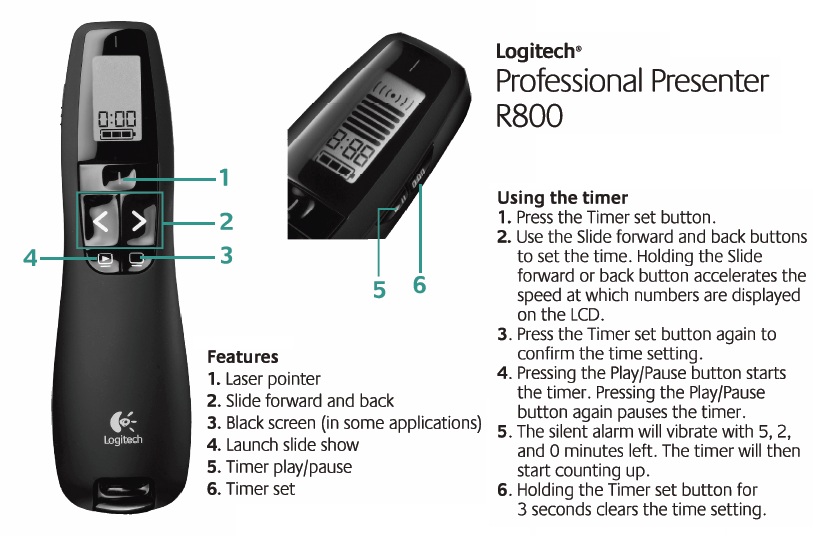
- you will use a remote
control for flipping from slide to slide
- the remote control has a timer which will vibrate when you
have 5 minutes and the again when you have 2 and 0 minutes
left.
- the remote has a laser pointer as well
- please deposit your PPTX and/or PDF file on the courseworks web page
of EESC BC 3800/01 (under 'shared files/mini conference') before
noon of the day of your presentation
- Don't use Prezi!!!! Only PDF or Powerpoint files are accepted
- use LastnameF.ppt as filename and add your Lastname,
Firstname under 'title' when you post the file
- PLEASE don't bring your presentation on a USB drive to class
or download it from your mail account to the presentation
computer in the front - WE DON'T HAVE TIME FOR THIS!
- during the mini conferences we will ask you to make comments
on each other presentations in writing; your advisor will
channel those comments plus those of faculty back to you in
writing